The 3-2-1 backup rule says to keep three copies of your important data, on two different types of storage, with one copy stored off-site. It sounds technical, but it is just a way of making sure no single accident, theft or mistake can wipe out your only copy.
Drives fail, laptops get stolen, files get deleted by mistake and malicious software can scramble everything it touches. A simple backup routine that follows this rule covers all of those cases.
What the 3-2-1 backup rule means
Three copies
That means your original data plus two backups. The reasoning is statistical common sense: the chance of two separate copies failing at the same moment is much lower than the chance of one failing alone.
Two different media
Keep the copies on at least two kinds of storage, for example your computer’s internal drive and an external hard drive, or an external drive and cloud storage. Different media tend to fail in different ways, so a single type of fault is unlikely to hit both.
One off-site
At least one copy should live somewhere else, away from the place where the originals are kept. A fire, flood or burglary affecting your home or office would otherwise take the computer and the backup drive sitting next to it. Off-site can be a cloud backup service, a drive stored at a relative’s home or in a safe-deposit box.
Sync is not backup
One of the most common mistakes is treating a synced folder as a backup. Sync services mirror changes, so if you delete a file or a virus encrypts it, the damage copies everywhere. A true backup keeps older versions you can go back to. Our guide on how to choose cloud storage explains the difference in more depth, and how to pick a provider with good version history.
What to back up first
You do not need to copy everything on day one. Start with what you could not replace.
- Family photos and videos.
- Documents, contracts, invoices and tax records.
- Client work and project files.
- Spreadsheets and databases that run your business.
- Your password manager’s export or recovery kit, stored securely. See our password manager basics for what to keep.
- Email archives, if you rely on them.
Programs and operating systems can be reinstalled, so they matter less than your own files.
A practical setup for home users
Here is an arrangement that satisfies the rule using inexpensive parts.
- Copy one: the files on your computer.
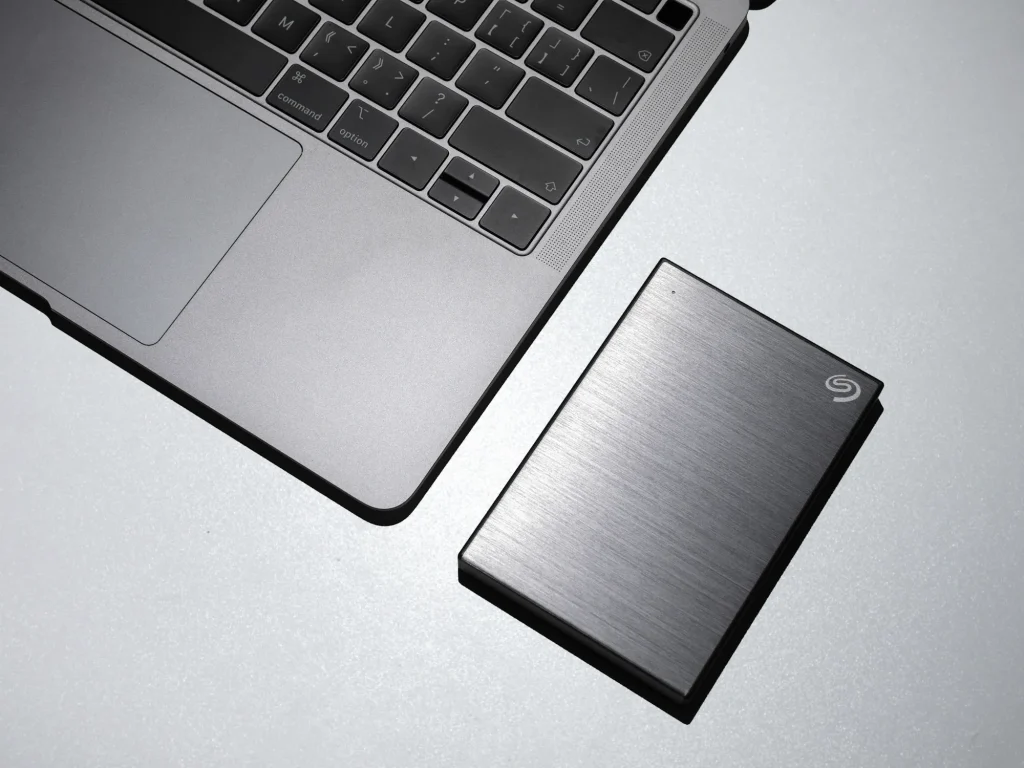
- Copy two: an external drive that backs up automatically using the backup tool built into your operating system, or a simple third-party program.
- Copy three: an automatic online backup service that runs quietly in the background and stores older versions.
The external drive gives you fast restores. The online copy gives you the off-site protection. Disconnecting the drive when you are not backing up adds an extra defense against malicious software that spreads to attached drives.
A practical setup for freelancers and small teams
Business data usually sits on several laptops, in shared cloud folders and in the software tools you use. Think about each location.
- Laptops: use automatic backup on each, including for people working remotely.
- Shared cloud folders: check that version history and deleted-file recovery are enabled, and consider a separate backup of the shared drive itself.
- Online tools: export important data, such as customer lists and accounting records, on a regular schedule.
- Admin access: protect backup accounts with two-factor authentication, since an attacker who reaches your backups can destroy them.
If clients entrust sensitive data to you, check any contracts or regulations about where and how it can be stored. Choose encrypted backups so a lost drive does not become a data leak.
Test your restores
A backup you have never restored is only a hope. Once a quarter, pick a few files at random and try to recover them from each backup copy. Confirm that you can open them, that they are the latest versions and that you know how long a full restore would take.
Also watch for silent failures. Backup software can stop working after an update, a full drive or a changed password, and it does not always shout about it. Check the status or the last successful backup date regularly, or turn on email alerts if available.
Beyond 3-2-1 for extra safety
Some people extend the rule to 3-2-1-1-0: one copy offline or immutable, which cannot be changed or deleted, and zero errors after testing. You do not need this at the start, but the idea of an offline copy is worth knowing. An external drive that stays unplugged in a drawer, updated monthly, is a cheap form of it.
More security and setup articles are collected in our technology category.
Where to start
Today, list the files you could not bear to lose and find out where they live. Buy or reuse an external drive and switch on your system’s automatic backup, then add an online backup for the off-site copy. Put a reminder in your calendar to test a restore in three months.
Frequently asked questions
What does 3-2-1 mean in backups?
Keep three copies of your data, on two different kinds of storage, with one copy kept off-site.
Is cloud sync a backup?
Not by itself. Sync mirrors changes and deletions, so a mistake or malware can spread. A backup keeps older versions you can restore.
How often should I back up?
Automatically and continuously, or at least daily, for files that change often. Whatever you choose, test a restore every few months.
Do I need an off-site copy at home?
Yes, it protects against fire, theft and flooding that could destroy both your computer and a drive kept beside it. An online backup service is the easiest option.